
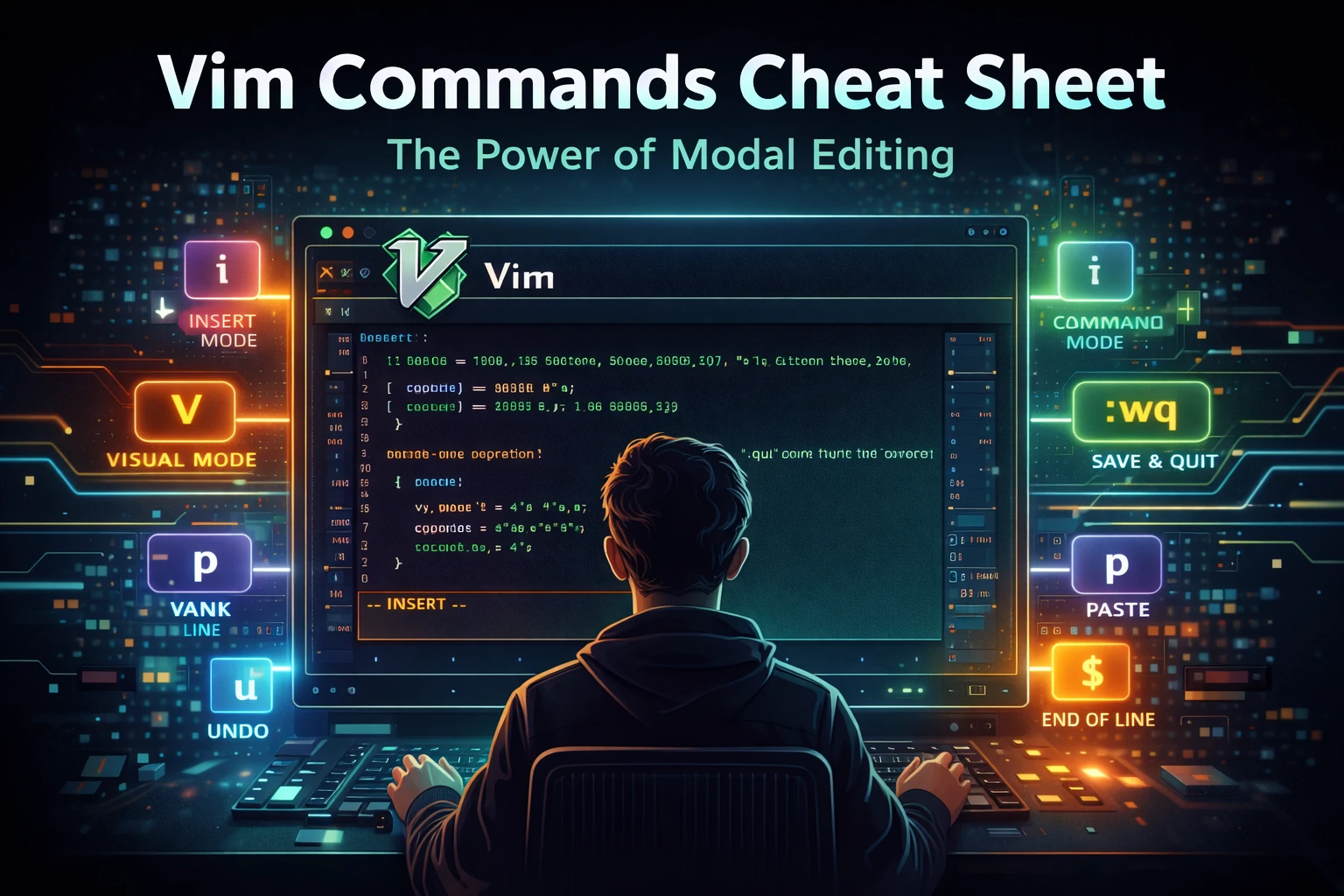
The Ultimate Vi/Vim Command Cheat Sheet — From Basics to Mastery
Few tools in the Unix ecosystem have stood the test of time like Vi and its extended version, Vim (Vi IMproved). Though minimalist at first glance, Vi is one of the most efficient and powerful text editors ever created. This guide provides a deep dive into essential and advanced Vi/Vim commands, empowering developers, sysadmins, and power users to edit at the speed of thought.
🧭 1. Modes in Vi/Vim
- Normal mode — navigation and command execution
- Insert mode — text input (
i,a,o) - Visual mode — text selection (
v,V,Ctrl+v) - Command-line mode — run ex commands (
:) - Replace mode — overwrite text (
R)
✏️ 3. Editing Basics (Expanded and Clarified)
i   - Insert before the cursor (enter Insert mode)
a   - Append after the cursor (move one character right, then insert)
I   - Insert at the beginning of the current line
A   - Append at the end of the current line

o   - Open a new line below the current one
O   - Open a new line above the current one

x   - Delete the character under the cursor
X   - Delete the character before the cursor
dd  - Delete the current line
D   - Delete from the cursor to the end of the line

yy  - Yank (copy) the current line
p   - Paste after the cursor
P   - Paste before the cursor

u         - Undo last change
Ctrl + r  - Redo
.         - Repeat last command
The distinction between insert and append is critical: a and A move the cursor to a position after or at the end of the line before inserting, while i and I insert text directly before the cursor or at the start of the line.
🔍 4. Searching and Replacing
/pattern        - search forward
?pattern        - search backward
n / N           - next / previous match
:%s/old/new/g   - replace all occurrences
:%s/old/new/gc  - confirm each replacement
:.,+5s/foo/bar/ - replace 'foo' with 'bar' in next 5 lines
🗂️ 5. Working with Multiple Files and Buffers
:e filename     - open file
:bn / :bp       - next / previous buffer
:bd             - delete (close) buffer
:ls             - list all buffers
:sp filename    - split horizontally
:vsp filename   - split vertically
Ctrl + w w      - switch between windows
Ctrl + w q      - close current window
🔄 6. Registers and Copy-Paste Power
"aY             - yank line into register a
"ap             - paste from register a
"+y             - copy to system clipboard
"+p             - paste from system clipboard
"_d             - delete without affecting registers
🔁 7. Macros — Automating Edits
q[a-z]          - start recording macro in register [a-z]
q               - stop recording
@[a-z]          - play back macro
@@              - repeat last macro
Example: qaI# <Esc>jq — prepends “# ” to each line. Run with @a.
📐 8. Visual Block Editing
Ctrl + v        - enter visual block mode
I, A            - insert/append at start or end of block
d, y, p         - delete, yank, paste block
:r !command     - insert output of shell command
Example: To comment multiple lines in Python: Ctrl+v, select lines, I# <Esc>.
📎 9. Marks and Movement
ma              - set mark a
'a              - jump to line of mark a
`a              - jump to exact position of mark a
:marks          - list all marks
⚙️ 10. Advanced Ex Commands
:!command       - run shell command
:r file         - read file into current buffer
:w file         - write to file
:m10            - move current line to line 10
:10,20d         - delete lines 10–20
:g/pattern/d    - delete all lines matching pattern
:v/pattern/d    - delete all lines NOT matching pattern
🧩 11. Split, Tabs, and Sessions
:tabnew         - open new tab
:tabn / :tabp   - next / previous tab
:tabclose       - close tab
:mksession file - save session
:source file    - restore session
🧠 12. Productivity Tips
- Use
:set number relativenumberfor hybrid line numbering. - Enable persistent undo with
set undofile. - Map frequent commands in
~/.vimrcusingnnoremap. - Use
:%y+to copy an entire file to the clipboard. - Try
vimtutorfor interactive training.
Mastering Vi is a lifelong skill that translates across systems, terminals, and decades. With the commands above, you can edit text at an unparalleled pace — efficiently, precisely, and without ever lifting your hands from the keyboard.
Keep this cheat sheet as your permanent reference, or bookmark it for your next deep-dive into Linux editing mastery.